What is the Agent?
The Agent is an AI chat that can drive every tool in Sandstorm end-to-end. Tell it what you want and it handles concept work, generation, editing, research, and even launching — without you having to bounce between routes. The home screen is a fresh agent session by default. Every conversation is saved as a thread you can come back to.
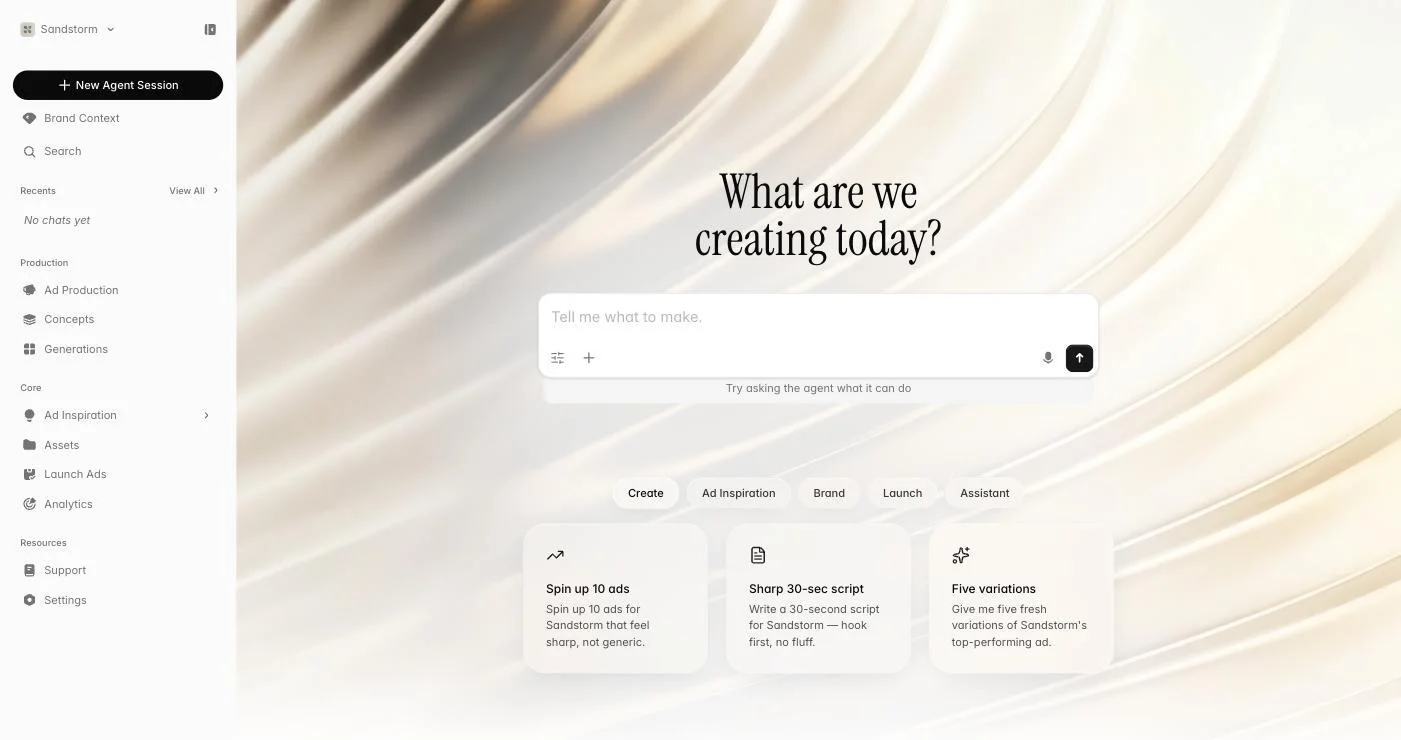 Start a new session
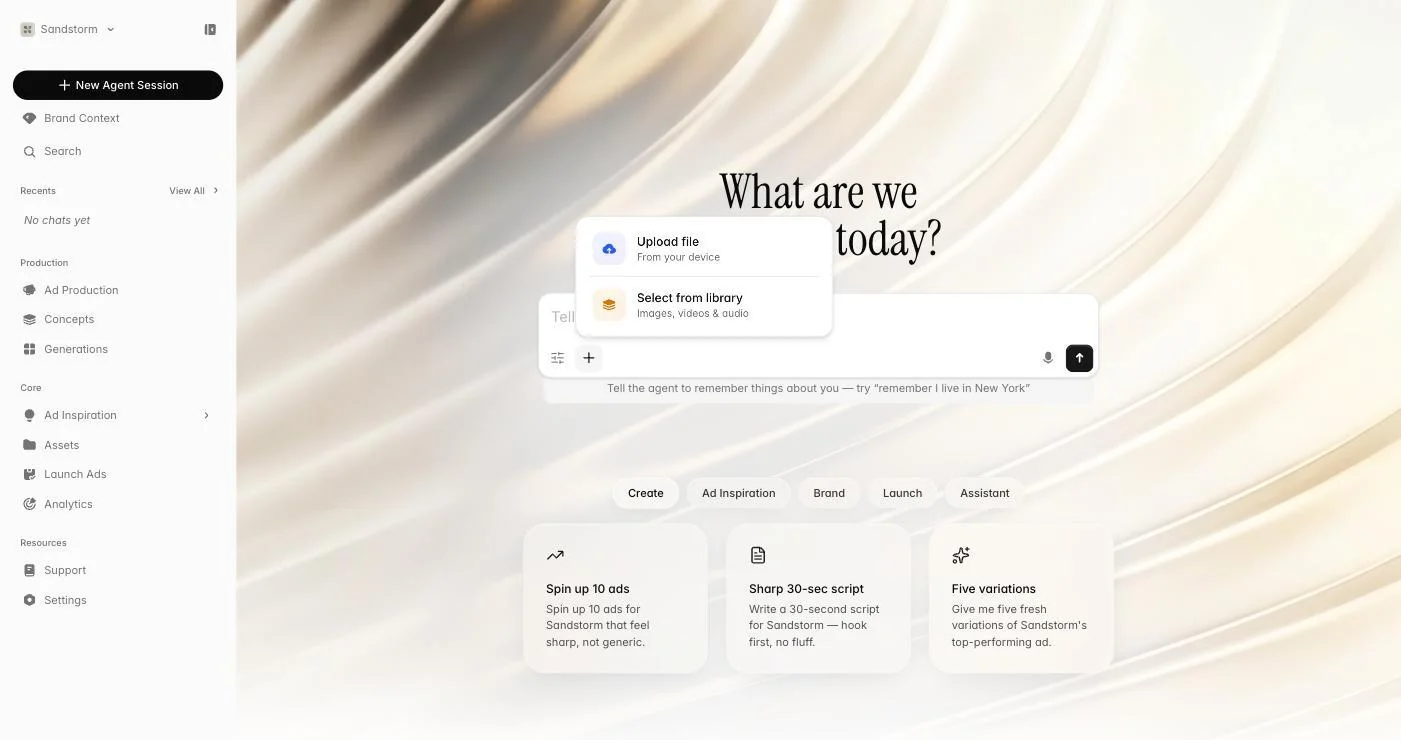
The composer
The chat box has more than text. The '+' button opens Add files: upload from your device or a whole folder, pick from your Assets library, or import from a connected cloud drive (Google Drive, Dropbox, OneDrive or Box). The microphone runs speech-to-text for hands-free input. Type '@' to reference any image or video in your library or generated earlier in the chat — handy for 'remix this' prompts. Send queues your message even if the agent is mid-response, so you can stack follow-ups without waiting.
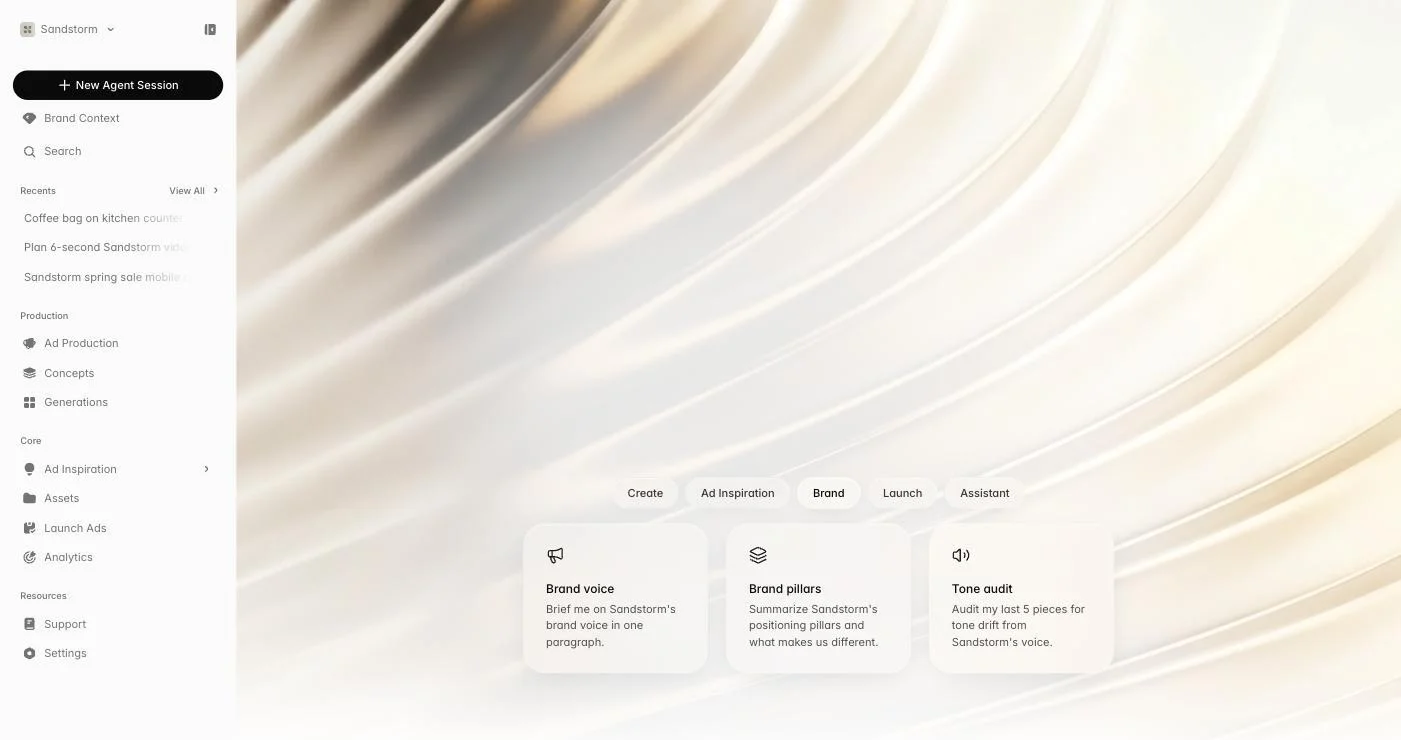
Suggestions to get you started
On the empty hero screen you'll see five suggestion tabs — Create, Ad Inspiration, Brand, Launch, and Assistant. Each has a handful of pre-written prompts ('Spin up 10 ads', 'Sharp 30-sec script', 'Spy on competitors', 'Brand voice', 'Daily roundup'). Click any to drop it into the composer — they auto-fill your brand name and category. Use them when you're not sure where to start.
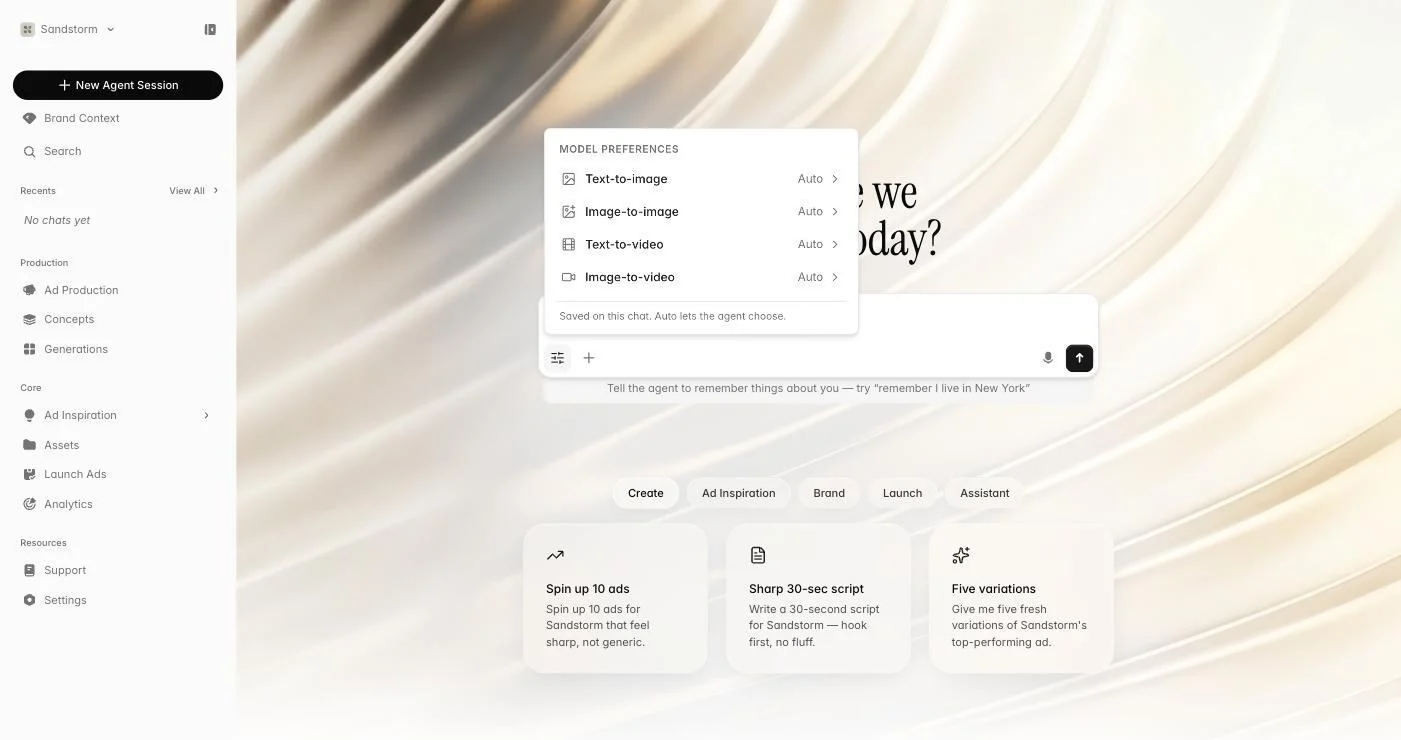
Picking quality per thread
The sliders icon on the left of the composer opens model preferences. Pick a quality tier for each generation type — text-to-image, image-to-image, text-to-video, image-to-video — or leave on Auto. Each thread keeps its own picks, so a fast brainstorming thread can run lighter while a hero campaign runs on the top tier.
When the agent asks back
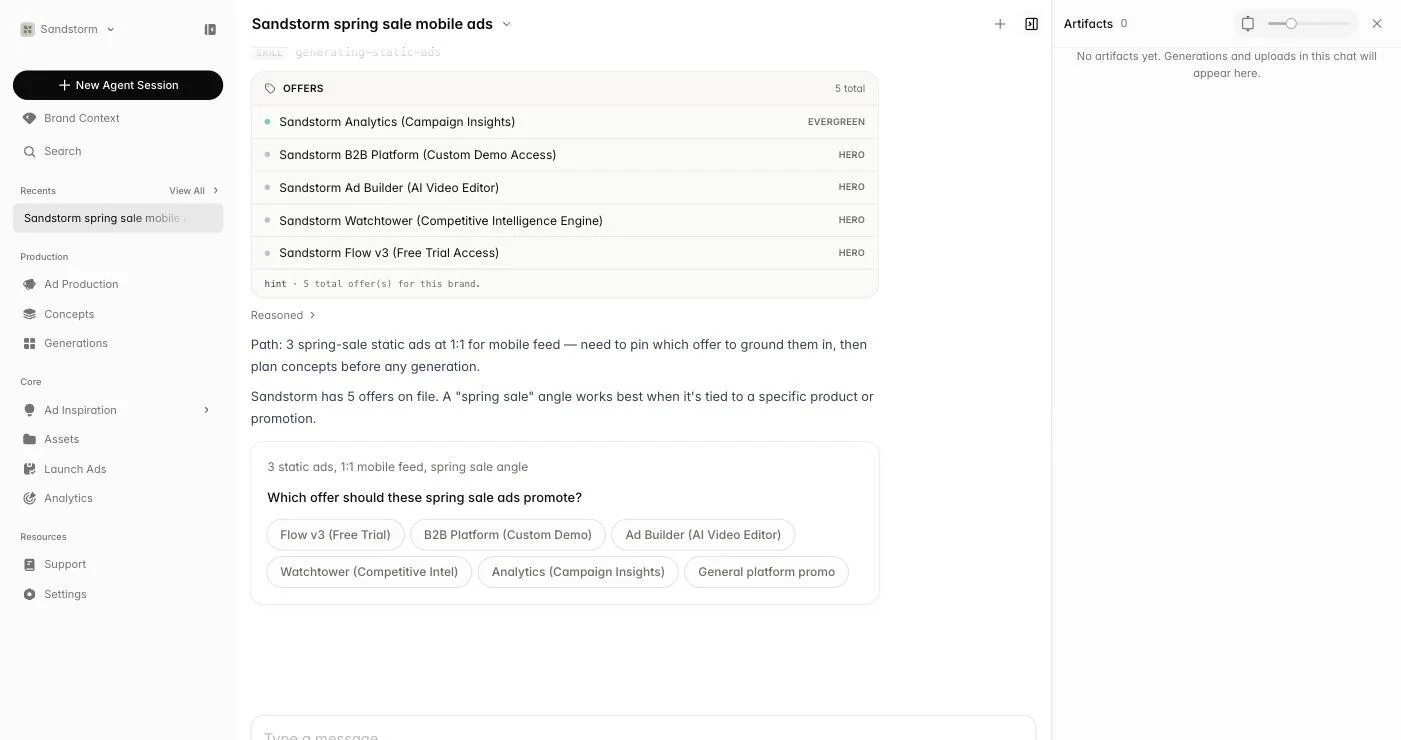
If a request is ambiguous, the agent stops and asks — sometimes a yes/no, sometimes a single-choice list, sometimes a multi-select, sometimes a small form. For expensive jobs you'll see a cost-approval card showing the credit cost before anything runs; approve or decline. This keeps you in control of where credits go and exactly what gets made.
The artifacts panel
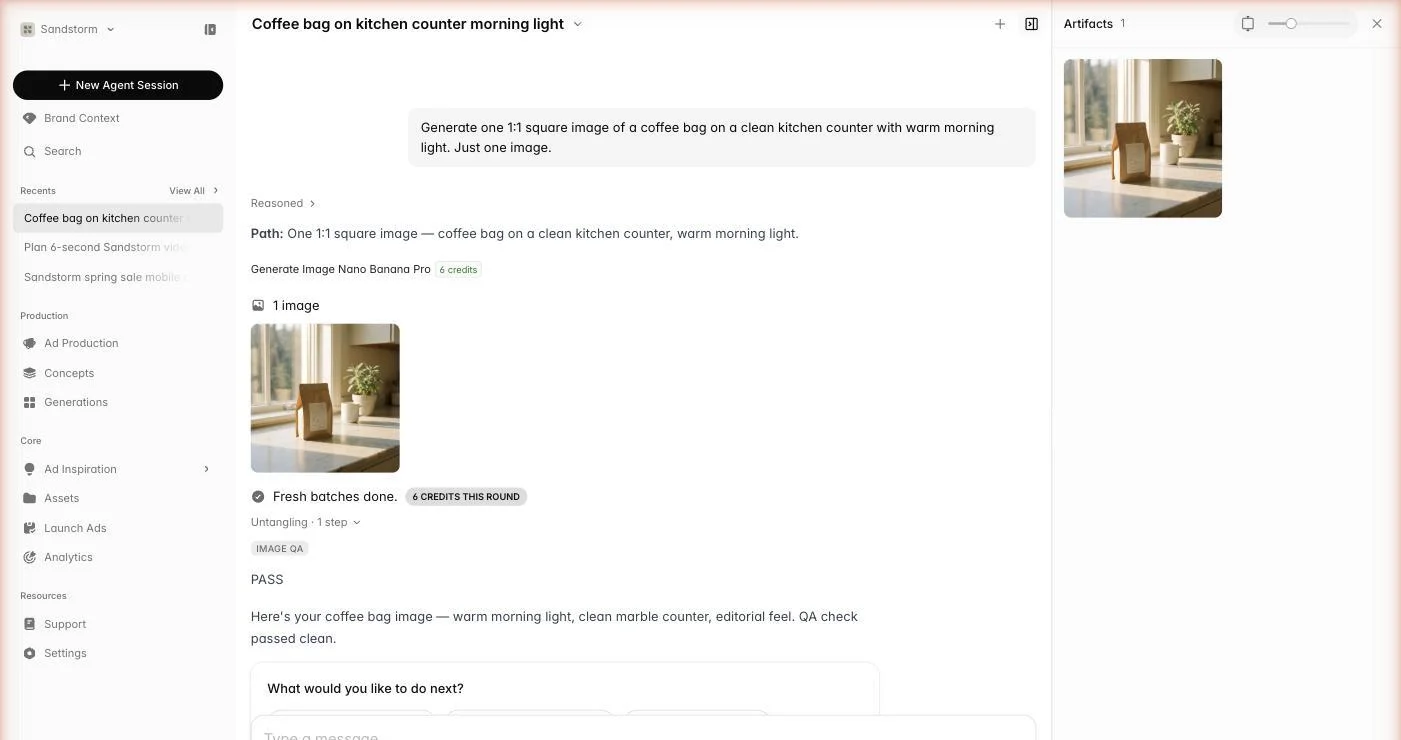
Significant outputs — finished ads, scripts, design files, strategy reports — get pinned to the Artifacts panel on the right of the chat. Browse them as a resizable grid (drag the tile-size slider), toggle between cover and contain fit, open any item full-screen, or pull them into another session. Artifacts persist with the thread and are easy to share with teammates.
Teaching the agent to remember
The agent has long-term memory you can write to in natural language. Just tell it — 'remember I prefer warm-toned product shots over high-contrast ones' or 'remember our hero CTA is always Shop the drop' — and it will recall those facts in future sessions for this brand. To update a fact, just tell it the new version.